
Use this IE777 Game guide to check the phone setup, find account help and see what may change after an update. It is written for Android readers in India.
If you have come across IE777 Game, look at the device and file checks first. The other sections cover sign-in, the main features and steps to try if setup fails.
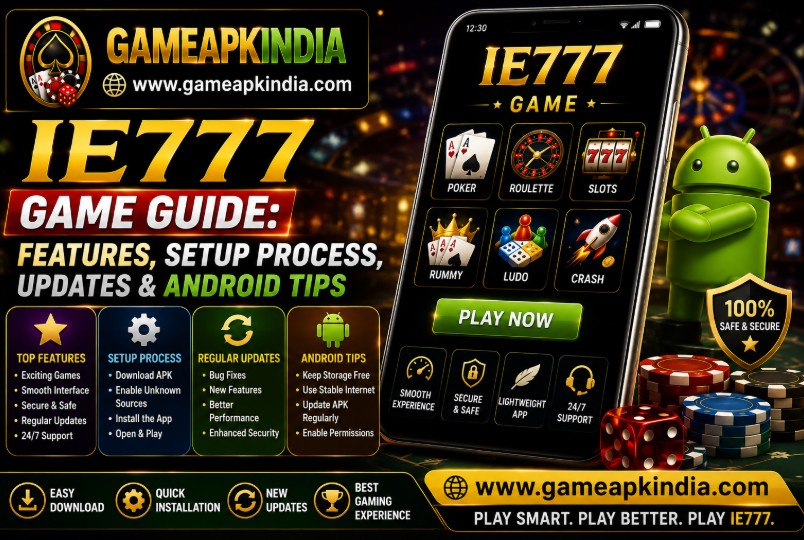
How IE777 Game Works on Android
The IE777 listing is for Android users who want to check the available features and know what to do before getting the file. Returning readers can use the login, update and troubleshooting sections.
Verify the package address and follow the instructions for the release you have. An older tutorial may describe a different Android permission or menu.
What Readers Look Up About IE777 Game
For IE777 Game, check whether the available version suits your phone and whether you can find its main controls. Ease of setup depends on the device and release.
Readers can use the guide to check these points first:
- Easy APK installation process
- User-friendly interface
- Quick account login
- Regular updates
- Compatibility with many Android devices
- Helpful setup and troubleshooting guides
These details help both new users and people returning after an update find the right step.
Checking the Source of an IE777 Game Package
Make the source and device checks before opening an APK. You can see which file you saved and whether the phone supports it.
Use an Address You Can Verify
Identify the publisher before opening an APK. An altered package from an unfamiliar site can fail during setup or behave differently after installation.
Check Device Requirements
Before getting IE777 Game, compare the minimum Android version with your phone and check how much storage is free.
Enable APK Installation
For a package from outside Google Play, use these permission checks:
- Open Settings.
- Go to Security or Privacy.
- Allow only the source you have identified and trust.
- After the installer finishes, turn the permission off if you no longer need it.
Putting IE777 Game on an Android Phone
Follow the phone’s prompts in order once the right package is saved:
- Get the current release from a source you can verify.
- Open the downloaded file.
- Follow the installation prompts.
- Let Android finish running the installer.
- Open the app and use the login option if it asks for your account.
If the installer stops, check that the full file saved and that your storage and Android version match its requirements.
Checking Why IE777 Game Feels Slow
Performance can depend on both the package and the phone. Work through these settings if it slows down:
Compare the Installed App With the Current Release
A newer build can include bug fixes, stability work and new features. Check what changed before updating.
Free Up Storage
Make more room on the phone if internal storage is nearly full. Remove apps or files you no longer use.
Close Background Apps
Close spare apps before launching IE777 Game so they are not using memory in the background.
Use Wi-Fi or Mobile Data That Stays Connected
An online feature may load slowly if the connection drops. Check that Wi-Fi or mobile data stays active while the game opens.
When the Package, Login or App Stops Working
App Won’t Install
Possible causes include:
- Incompatible Android version
- Corrupted APK file
- Insufficient storage
- Existing app conflicts
Free some space and get a fresh copy if the original APK did not finish saving.
Login Problems
If the account screen will not let you sign in:
- Confirm your login details are correct.
- Check your internet connection.
- Check for a newer supported version of the application.
- Restart the app and try again.
When the App Keeps Closing or Freezing
If the app closes unexpectedly, check Android updates and available memory. Clear the relevant app cache or restart the phone before testing the same version again.
What to Check in an Android Gaming Guide
Look for a source that identifies the current package and explains what to do if setup or an update stops.
Useful resources typically include:
- APK installation guides
- Login walkthroughs
- Update announcements
- Android optimization tips
- Troubleshooting solutions
- Frequently asked questions
A guide that keeps package, sign-in and troubleshooting details together can help you go directly to the step you need.
Maintaining the Phone You Use for IE777 Game
Use the following device checks before running IE777 Game or a similar Android package:
- Keep your Android system updated.
- Restart your phone occasionally.
- Clear cached files regularly.
- Maintain sufficient battery during long sessions.
- If the phone has Game Mode, check whether it helps the app you use.
- Avoid downloading APKs from unverified websites.
After making a change, reopen the app and see whether the game loads more consistently.
Conclusion
Use the IE777 Game guide to find the installer and account steps or to diagnose a problem after an update. Compare the instructions with the version you are running.
Keep Android and the app current where supported. Before replacing a file or using a new account prompt, check which version and source you are working with.
Common Questions About IE777 Game Setup
1. What Is the IE777 Game App For?
IE777 Game is listed as an Android gaming app. Its guides cover how to reach the features, install the package and access an account.
2. Which IE777 Game Package Works on Android?
Use the Android-compatible release and compare its requirements with your handset.
3. Where Do I Begin the IE777 Game Install?
Save the package from a source you can verify. If Android requests permission, allow the verified source and finish the installer prompts.
4. What Should I Check if IE777 Game Will Not Install?
Look at storage, Android support, the saved file and the phone’s installation permissions.
5. What Can Make IE777 Game Run More Consistently?
Check for updates, close spare apps, free storage and use a connection that can stay active.
6. How Do I Find a New IE777 Game Version?
Use a trusted Android guide that identifies current APK releases and provides the matching setup instructions.

